
1. Check last week, free
Drop last week's export on the Trade Check: no account, and the file is never uploaded. Tick "Remember these rules on this device" to keep the rules you set in this browser.
How VantageGrid works: importing your platform's export, your rules, the daily Review, Stats, firm limits, your account and the Pro API, with the most common fixes. Search or deep-link any section.
MetaTrader is the registered trademark of MetaQuotes Ltd. NinjaTrader is a trademark of its respective owner. TradingView is a trademark of its respective owner. VantageGrid is independent and is not affiliated with, endorsed by, or sponsored by these trademark owners.
Try a broader term such as "import", "rules", "Review", "API" or "billing".
VantageGrid checks every closed trade against the rules you trade by and shows what breaking them cost you. This is the shortest way from last week's export to your first review.
Drop last week's export on the Trade Check: no account, and the file is never uploaded. Tick "Remember these rules on this device" to keep the rules you set in this browser.
In your journal, open Import and drop the file. It is read in your browser, asks only what the file doesn't say, and saves nothing until you press Save.
On Your rules, enter the rules you trade by, or fill the form from the ones you remembered in the Trade Check. Every trade is checked against them.
Your journal opens on the last day you traded: the Rule Cost, each rule, the room left under your firm's daily loss limit, and one commitment for the next session.

The Trade Check reads a trade export in your browser and checks every trade against the rules you set. There is no account, and the file never leaves your browser.
What the trades that broke a rule netted, beside the trades that followed every rule, with a running total of each. It is called a cost only when the rule breaks lost money.
How often each rule broke, on how many days, and what those trades netted. A winning trade that broke a rule still counts as a rule break.
How long you held winners and losers, how your trades after a loss did, how your later trades of each day did, and one thing to work on next session.
An image of the result, drawn in your browser from the numbers you tick. Money is left off unless you tick it.
No file at hand? Run it on the synthetic sample week. Its plan-only curve is hindsight on the file, not a forecast: skipping a trade could have changed the ones after it.
Open Import in your journal and drop your platform's CSV export. The same engine as the free Trade Check reads it in your browser and shows you every trade before anything is saved.
| Platform | What to export |
|---|---|
| NinjaTrader 8 | Trade Performance: the Trades grid or the Executions tab, exported as CSV (step by step) |
| NinjaTrader Web / Tradovate | The Orders report: ≡ menu → Reports, Report Type Orders, your account and last week's dates, GO, then download it as CSV. The Performance report, exported as CSV, is read too. Neither has a commission column, so their results are before costs; the Fills report, exported the same way, has each fill's commission. Or automatically: NinjaTrader Desktop 8 signed in to the account with the connection type NinjaTrader (NinjaTrader's support article “Using NinjaTrader Desktop with a Tradovate Account”), with the VantageGrid add-on from Settings → Integrations |
| TradingView (trading panel connected to your broker) | The Order History tab of the Trading panel, saved as CSV with its download icon. Not Position History, and not a strategy's List of trades |
| Rithmic / R|Trader Pro | Order History, Completed Orders, with the columns Symbol, Buy/Sell, Qty Filled, Avg Fill Price, Status and Update Time, exported as CSV. It exports one day at a time: one file per trading day |
| TopstepX | The Trades export |
| Match-Trader | The trade history, exported as CSV |
| MetaTrader 4 | The account history report (Save as Report), opened in a spreadsheet and saved as CSV |
| MetaTrader 5 | The Deals table of the history report, opened in a spreadsheet and saved as CSV |
| Sierra Chart | The Trade Activity Log, Trades view, saved with File >> Save Log As |
| Quantower | The Trades panel, exported |
| Prop firm (Apex, Topstep, …) | The export of the platform your firm gave you (NinjaTrader Web / Tradovate, Rithmic R|Trader Pro or NinjaTrader 8), as listed above |
| Other platforms | A CSV with one closed trade, one fill or one order per row; you choose any column the import doesn't recognise |
MetaTrader is the registered trademark of MetaQuotes Ltd. NinjaTrader is a trademark of its respective owner. TradingView is a trademark of its respective owner. Tradovate is a trademark of its respective owner. TopstepX is a trademark of its respective owner. Sierra Chart is a trademark of its respective owner. Quantower is a trademark of its respective owner. Rithmic and R|Trader Pro are trademarks of their respective owner. Match-Trader is a trademark of its respective owner. Apex Trader Funding and Topstep are trademarks of their respective owners. VantageGrid is independent and is not affiliated with, endorsed by, or sponsored by these trademark owners.
The time zone of times written without one, and a trade's side when the file has no side column and its prices can't tell. Any other value the file does not state is worked out from the file's own numbers or shown as unknown, never guessed.
Whether the P&L already includes fees is read from the file's own running net total, or from its prices with the contract's verified point value. When the file can't tell, you choose whether to subtract its fee columns; without fee columns, it says costs are unknown.
In an orders report only filled orders are trades. Cancelled, rejected, working and expired orders are counted and left out; an order that filled in part counts for what filled.
A trade already in your journal is skipped, so importing the same export again adds nothing. Rows it can't read are counted, with the reason.
Only the trades you confirm, when you press Save. Only the column matcher, for a layout the import does not recognise, uploads the file itself.
Simulation and replay accounts are labelled and reviewed on their own, never added to your live totals or firm limits.
Every trade you confirm is kept, with no monthly limit. A file that is not a record of your own trades, such as a strategy report of simulated trades, is refused with the reason. For any other layout, the column matcher lets you say which column holds what.
Most traders only need the first.
| Way | Best for | What to check |
|---|---|---|
| Your platform's export (Import) | Last week, last month or your whole history, from the file your platform already makes | The time zone the import asks for, and each account's totals against your platform |
| By hand (Add Trade) | A trade that isn't in an export yet | Entry and exit, on your account's clock |
| The Pro API (docs) | Your own scripts and tools | Your API key's safety and the rate limits |
Add Trade is the fastest route for discretionary traders and backfills, with no monthly limit. Times are typed on your account's clock, which the form names.
Instrument, buy/sell, entry price, exit price, quantity, commission and account name. Add setup, technical confluence, SMC/ICT tags, sentiment and execution emotion in the same form so the trade lands fully tagged instead of needing a second pass later.
Optional sleep, hydration and focus self-ratings are stored with the trade and feed the Trade Permission readiness score — the same three fields external bots can pass through the Pro API.
Enter account size, entry, stop and risk percentage and the built-in calculator returns the dollar risk and the position size that matches it — before you commit the numbers to the journal.
The form shows your live Trade Permission verdict (go / conditional / reduce, with score and suggested size multiplier) while you fill it in. It needs closed trade history first; a brand-new account sees "SETUP NEEDED" until trades exist.
Save your rules once on Your rules. Every closed trade is then checked against them per account and trading day, exactly as the Trade Check checks a file.
Choose when your trading day starts: midnight, or 17:00 or 18:00 the evening before. Evening trades then count toward the session they belong to.
If you ticked "Remember these rules on this device" in the Trade Check, the rules page can fill its form from them. Nothing is saved until you press Save.
The Review, Stats and the rules page use the rules you have saved now, so a change applies to every day they show.
Your journal opens on the last day you traded. The first card is that day's Rule Cost and today's room under each firm account's daily loss limit, with one action: close the day.
What the trades that broke a rule netted, beside the trades that followed every rule. A gain is never called a cost, and amounts in different currencies are never added together.
The daily loss limit minus today's closed loss, per firm account, whatever day you are looking at. Your firm also counts open positions, so its own dashboard is authoritative.
Write a reflection and one commitment for the next session; the next review shows it again. You can edit or delete it.
Each day's trades, how many followed every rule, the net and what the rule breaks netted.
Simulation and replay accounts are reviewed on their own and never added to your live totals or firm limits.
A trade without a recorded amount is counted and named, never estimated. Warnings about a stalled connection, an import or billing show above the day until you dismiss them.

Pick an account and a period: all time, the last 12 months, 90 days or 30 days. Stats opens on that period's Rule Cost and the plan-only curve.
The running total of all your trades against only the trades that followed every rule, in closing order from zero. It is hindsight, not a forecast.
Net, win rate, profit factor, average per trade, average win and loss, largest win and loss, trading days, and the best and worst day.
Your running total from closed trades, starting at zero, and the deepest fall from a high point. Open positions and your broker balance are not in it.
How many trades followed every rule each week, what the rule breaks and the rest netted, and each rule with its trades, days and net.
Net per trading day for the latest twelve months with trades, and results by the hour you entered, in your account's time zone.
Trades, net and win rate per instrument, long against short, and per setup you recorded.
Money is added only in your base currency. Trades in another currency, trades without a recorded amount and practice accounts are named at the top of the page and left out of every figure.

Enter each evaluation or funded account's limits once under Account → Risk Guard. The Review then shows the room left under the daily loss limit, from the day's closed trades.
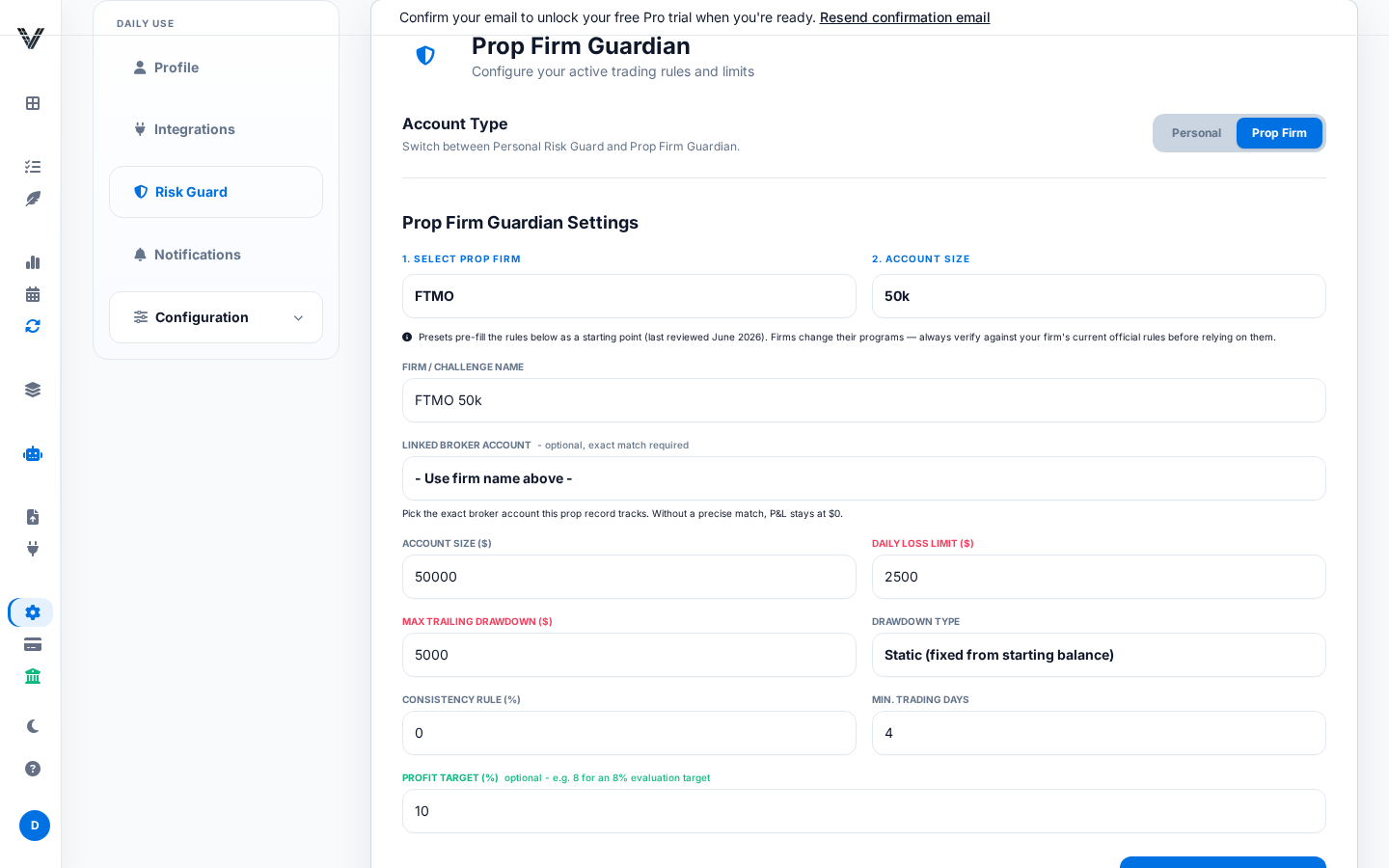
The account name and size, the daily loss limit, the maximum drawdown and its type (static, end-of-day or intraday trailing), the profit target, the consistency rule and the minimum trading days.
Presets for FTMO, Topstep and Apex fill the fields in as a starting point. Firms change their programs, so check every field against your account's own rules.
Use the account name your imported trades carry, so the review counts the right trades. Each evaluation or funded account gets its own entry.
Free keeps firm limits for one firm account; Pro covers every firm account. See Plans & limits.
A trailing drawdown moves with your balance through the session, open positions included, so the Review names your limit and your firm's dashboard keeps the live figure. Model the three types with the free drawdown calculator.
VantageGrid reviews the trades you import or your connections send. It does not place or block trades, and data from a connection can arrive late or incomplete during fast markets or outages.
The Journal is where imported and manual trades become reviewable records. Everything below happens on /journal.
The chips above the list split trades into All, Wins, Losses, Mistakes and Missed. The Filter button opens the full filter modal: date range, account, instrument, setup, side, and a minimum/maximum P&L range. An active filter shows a badge count so you never silently review a subset by accident.
Click a trade to open its full record: narrative notes, three tag groups (Psychological Mistakes, Technical Confluence, SMC/ICT model tags), setup, sentiment, execution emotion, plan compliance, stop-loss/take-profit, and account name. Save writes everything at once.
Attach chart screenshots (PNG, JPEG or WebP, up to 5 a trade) to any trade from the same modal: paste one with Ctrl+V (⌘V on a Mac) while the trade is open, drop it on the box, or click to pick a file. Thumbnails show in a strip; click one for a full-screen lightbox. A counter on the button shows how many are attached. Screenshots stay private to you.
The Share button in the trade modal creates the public read-only link described under Trade sharing.
Notes and journal search work on every plan; Free keeps up to 5 daily notes a week and Pro has no limit. The Daily Journal panel gives every trading day its own free-writing space with autosave and one-tap mood chips (Focused, Calm, Confident, Anxious, Frustrated, Tired).
Log a setup you saw but did not take via the Missed chip: instrument, setup, and a short note on what stopped you. Missed trades are tracked separately — they never touch your P&L.
Next to the Trade List sits the Pivot Grid: an aggregate table that groups all your trades by Strategy Context, Asset, Day, Side or Quality, with win rate, average win/loss, net P&L and a Kelly % per group. Click any column header to sort. It is the fastest answer to "which bucket is actually carrying my results?".
A setup name on each trade lets Stats compare your results setup by setup.
Use stable names such as "Opening Range", "VWAP Reclaim" or "Trend Pullback". Renaming the same setup every week splits its results.
Mark events such as FOMO, revenge, late entry, early exit, oversized risk, a moved stop or no plan, so each trade's record says what happened.
Also tag what went right: patience, following the plan, a correct no-trade, reduced size, stopping after a rule was hit.
A useful minimum: one setup on every closed trade within a day of closing it. That is enough for Stats to compare your setups.
A playbook is a name, a description and an ordered list of plain-language rules, such as "Price is above the 200 EMA" or "Risk is 1% or less".
Open Playbooks, choose Create New Playbook, name it, describe the setup and add each rule as its own row. Once saved, it can be chosen when you log or edit a trade.
When a trade uses a playbook, tick the rules you actually followed; the trade gets a compliance score.
Free keeps up to 2 active playbooks and Pro has no limit.
Home has two views: the Review, and the full dashboard of widgets. Open the full dashboard from Home's tab bar. The “i” beside a widget opens its entry here. Widgets marked Pro show their figures on Pro only.
The share of your closed trades that ended with a profit.
What your winning trades made divided by what your losing trades lost. Above 1, the winners outweigh the losers.
Your net P&L divided by your closed trades: the average result per trade.
Your net P&L after fees for this month, or for the date range you choose at the top of the page.
How many closed trades the figures are built from, with this week's count beside it.
Your net P&L minus the share your expected tax rate sets aside, all time or for the date range you choose. Nothing is set aside from a loss. Set the rate under Settings → Financials; it is an estimate, not tax advice.
Your average trade result divided by how much trade results vary, per trade and not annualized. From 1 it reads Good, from 1.5 Excellent. Pro.
A runs test on the order of your wins and losses. Beyond ±1.96 they come in streaks, or alternate, more than chance would explain; in between, no pattern stands out. Pro.
A score from 0 to 100 in four parts: 30% the share of trades without a mistake over 30 days, 30% the share of trades that reached 1R or more, 20% your win rate (50% or more scores in full) and 20% today's P&L against your daily loss limit. Pro.
The one issue that would help most, picked from seven checks of your trades: behaviour tags, tilt, a setup whose results are slipping, missed trades you logged, sleep, hydration and focus, how your results vary by day, and the Grid Performance Score. It says why it matters and what to do, and names the next two. Pro.
This week's plan, built from the issue in Fix This First: a target, rules for your trading, when to stop for the day and questions for your end-of-day review, with this week's trades and clean rate so far. Pro.
Each setup scored from 0 to 100 on its sample size, win rate, profit factor, average R, rule breaks, recent trend and trade quality, and marked Scale Candidate, Stable Edge, Watchlist or Avoid / Rebuild, with its best session. Pro.
Your results grouped by trading session, in New York time, and by whether a day's trades had consistent or mixed outcomes: the best environment and the riskiest, with average P&L, win rate and trades. Pro.
Short notes on your trades: a setup whose win rate over the last 30 days is 20 points or more below its overall rate, the behaviour tag that cost you most in 30 days. Pro.
Before new risk: Go, Conditional, Reduce or No trade, with a score, a suggested size and the reasons, from the Circuit Breaker, your focus setup's edge and this week's mission. It is guidance: VantageGrid does not place or block trades. Pro.
Today's closed trades, graded: the number of trades, the total R and the clean rate (the share of reviewed trades without a mistake), with what to repeat and what to fix. Pro.
During today's session, an alert when you near your daily loss limit, lose several trades in a row, show signs of tilt, trade fast (five trades in two hours or eight in a day) or give back profit. Pro.
Your stops for today: the share of your daily loss limit used, trades taken against your maximum, your losing streak, tilt and whether live imports are paused. It warns from 60% of the limit and locks at the limit. Pro.
A tilt score from 0 to 100, read as Calm, Caution or Tilt, from your emotion tags, your losing streak, how fast you are trading and your discipline over the last 7 days. High means step away. Pro.
Your P&L by weekday and hour of entry, in your time zone.
Your net P&L per day, a month at a time. The full calendar is under Journal → Calendar.
Your P&L and win rate by the hour you entered, in your time zone.
Which of the New York, London and Tokyo sessions are open right now.
Your results by the sleep, hydration and focus you recorded in the Pre-Trade Sequence when you added a trade. Pro.
Each account's closed trades, net P&L, win rate and profit factor.
Each firm account you set up under Settings → Risk Guard, with its P&L against the profit target and the drawdown used. Only trades carrying that account's name count. Pro.
Your open positions by asset, and a warning when several tend to move together. Which assets move together is a fixed estimate, not measured from market data. Pro.
On a computer, open View options and choose Customize Layout to move or hide widgets; Add Widgets brings hidden ones back.
From any trade, choose Share to generate a public, read-only link. Calling Share again on the same trade reuses that link rather than creating a duplicate.
Instrument, long/short, net P&L, R-multiple, entry/exit, size, quality grade, whether the plan was followed, setup/sentiment/execution tags, and your notes.
Account name, broker identity, and fee breakdown are deliberately left out of the shared page, by design, regardless of what is visible to you privately.
Revoke a link any time from the same trade. A revoked or unknown link shows the same generic "no longer available" message either way, so a dead link cannot be used to confirm whether a trade ever existed.
Shared trade pages are hidden from search engines by design and will not appear in Google or other search results.
Everything account-level lives in one place. Settings are organized by purpose: Account, Trading, and Data & business. All three groups stay visible in the desktop sidebar, with the same groups and names in the mobile Settings section menu. Security & 2FA is directly accessible under Account.
| Group | Tab | What it's for |
|---|---|---|
| Account | Profile | Read-only name/email (contact support to change either) and your membership plan card linking to Billing. |
| Account | Security & 2FA | 2FA setup/removal, backup recovery codes, and password change. See the Account Security section above for the full walkthrough. |
| Account | Notifications | Desktop, Telegram, email and sound alert preferences. See the Notifications section below. |
| Account | Privacy Mode | A browser-only toggle that blurs financial figures on screen. |
| Trading | Integrations | Every broker, exchange, platform bridge and CSV import route lives here, including connect/disconnect controls and copy-paste webhook URLs. |
| Trading | Risk Guard | Personal risk limits or your firm limits (drawdown type, consistency rule, profit target and more). |
| Trading | Journal Tags | Customize the five tag sets used across the journal, with a one-click reset to defaults. |
| Trading | API Keys | Create/revoke your VantageGrid API key (used for both platform webhooks and the Pro API) and manage outbound AI webhooks. |
| Data & business | Financials | One field: your expected tax rate (%). |
| Data & business | Exports | CSV, Excel and JSON exports of every trade, on any plan. |
| Data & business | Partner Program | A compact view of your referral link, referrals, conversions and credit days, linking to the full Partner Program page. |
Before upgrading or connecting external tools, confirm that account recovery and authentication are clean. A trading journal can become operational infrastructure, so treat access seriously.
Backup codes are single-use recovery codes for losing access to your authenticator. VantageGrid stores them encrypted at rest and only shows them after password confirmation.
Use a unique password, avoid shared team logins, and rotate the password immediately if you suspect browser, email or machine compromise.
API keys are not login passwords. Revoking an API key does not log out a browser session; changing password or logging out bumps session token version so copied browser tokens stop working.
Always on. Your browser will ask for permission the first time; allow it if you want in-browser alerts while VantageGrid is open in a tab.
Message @userinfobot on Telegram to get your numeric chat ID, then paste that ID into Notifications. VantageGrid cannot look this ID up for you; it only works once you have it from Telegram itself.
Always on and cannot be switched off: an alert when you reach a loss limit you set in Risk Guard, and notices about your account's security.
The weekly digest (Sundays: your week's Rule Cost, the rule you broke most and one next step), the Pre-Market Briefing (weekdays: your last commitment, the rule to focus on, your rules and today's room), Product Updates, Performance Milestones (email), Trade Execution Alerts, Review Reminders, Sound Notifications (a ping on new trade events), and Streak Milestones can each be switched on or off independently.
Newsletter vs. account emails: the marketing newsletter is a separate double-opt-in list — subscribing sends a confirmation link you must click before anything else arrives, and every newsletter contains a one-click unsubscribe that takes effect immediately. Unsubscribing from the newsletter never stops account, security or billing emails; those follow the toggles above (and the always-on safety alerts).
Account → Exports offers CSV, Excel (.xlsx) and JSON exports of every trade you have stored, on every plan.
Canceling your subscription (Billing → Cancel) only stops future charges; your account then becomes Free to keep, which shows this week and last. It does not delete anything — your trades, tags, notes and screenshots stay exactly as they were.
In the Android app, open Account → Delete account and data, confirm the store-billing notice, and enter your password. If you cannot access the app, use the public deletion request page. Deleting VantageGrid does not cancel a Google Play subscription; cancel that separately in Google Play first. Minimal legal, billing, security, suppression, or audit records may be retained as described in the Privacy Policy.
Your timezone is set automatically once, during onboarding, and is not yet user-editable from Account Settings. A display-currency setting is also not available today. If either is wrong for your account, contact support — it is a quick manual correction on our side.
When an imported fill reports a fee in the traded base asset, VantageGrid converts it using that execution's price. Other currency conversions use daily accounting reference rates, which can differ from your broker's execution rate. Fiat rates come from Frankfurter. Supported crypto rates use Binance market prices and observed Kraken USDT/USD or USDC/USD prices; stablecoins are not assumed to equal one dollar. Crypto conversions for the current day use the preceding completed UTC day. Missing or unsupported historical rates stop the import for review instead of producing estimated totals.
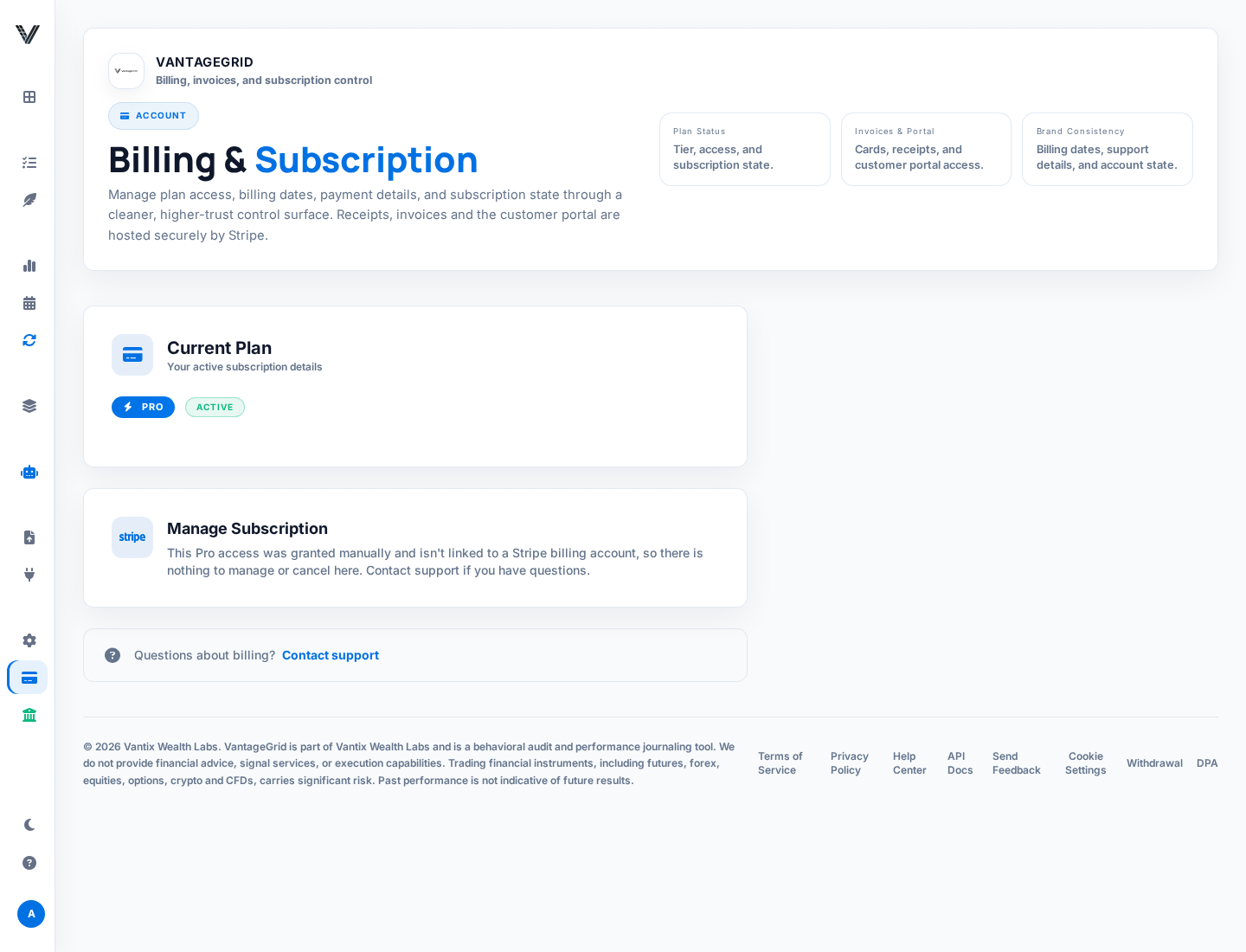
Web billing state is synchronized from Stripe. Android subscription access is synchronized from Google Play through RevenueCat. Manage renewal and cancellation with the provider where you purchased.
Every new account gets Pro from the moment its email address is confirmed, through the 21st day after that, until midnight in your time zone. No card is asked. One per account; an account that subscribed before, or was made before new accounts got a trial, keeps its plan.
Cancel web purchases from Billing and Android purchases from Google Play subscriptions. During a trial, cancellation prevents renewal while access may continue until the trial end.
The first paid subscription has a voluntary 14-day money-back guarantee. Contact support from the account email with the Stripe receipt or Google Play order number; store purchases may also use Google Play's refund process.
If payment succeeded but Pro is missing, restore purchases in the app and sign out/in. If it still looks wrong, include account email, approximate payment time, provider and subscription status.
This is the full comparison behind the Pricing page. Every new account starts with 21 days of Pro, with no card; Free to keep is what stays after them without a subscription. Accounts made before new accounts got a trial keep the terms they had. Desk is no longer sold; an existing Desk subscription keeps everything in the Pro column.
| Included | Free to keep | Pro |
|---|---|---|
| Price | No card | €24/month or €179/year, VAT included |
| Trades | Unlimited (file import or by hand) | Unlimited |
| History shown in the Review, Stats and Trades | This week and last | Every week, over any period |
| Your rules checked on every trade, the daily Review and the five-day trend | ✓ | ✓ |
| Stats: results, equity and drawdown, calendar, time of day, instruments, sides and setups | This week and last | Any period |
| Exports of every trade (CSV, Excel, JSON) | ✓ | ✓ |
| Firm limits and the room left | One firm account | Every firm account |
| Active playbooks | 2 | Unlimited |
| Daily notes | 5 a week | Unlimited |
| Pro API for your own tools | — | ✓ |
21 days of Pro unlock everything in the Pro column the moment your email address is confirmed, including the Pro API. No card is asked.
VantageGrid has several operational limits so expensive features remain reliable. Most limits reset automatically; Pro removes the core journaling caps.
| Area | Where to find it | What to know |
|---|---|---|
| Trades | Import and Add Trade | No monthly limit, on Pro and on Free to keep, counted across file imports and trades added by hand alike. |
| Trade exports | Account → Exports | CSV, Excel or JSON of every trade, on any plan. Use CSV for accountant or broker reconciliation. |
| Pro API rate limit | External `/api/v1/...` clients | Design agents for 60 requests per minute and back off on 429 responses. |
| Sync cleanup | `DELETE /api/v1/trades/sync/imports` | Removes a bad sync batch; limited to 20 requests per minute, more strictly than sync itself. |
Before exporting for tax or prop-firm review, filter by the correct account and date range, then compare total P&L and trade count against your broker statement.
The Pro API lets your own assistant or script read your numbers: your rules, what breaking them cost you, the room left on each firm account and your trades. It reads what is in your journal. It gives no advice, sends no signals and places no orders.
Full API documentation is in this Help Center. The interactive Swagger UI is only available in development environments; on production it redirects here.
Every external endpoint lives under /api/v1, authenticates with the same vgai_ API key, and requires an active or trialing Pro subscription. Rate limits are per client IP, so keys behind a shared network address share a bucket while one key rotating IPs receives separate buckets.
Each key has an access level, chosen when you create it and changeable on the Account page. A read-only key (scope journal:read, the default) can call every read endpoint and the trade pre-check. Sending, importing or deleting trades and contributing import blueprints also need journal:write; without it the API answers 403 and names the missing scope. Every call is counted on its key and the latest are listed beside it on the Account page.
| Endpoint | What it does | Key | Limit |
|---|---|---|---|
| GET /ai-context | Compact, LLM-ready summary: your saved rules, this week's Rule Cost rule by rule, the room left on each firm account, recent performance and tag patterns. Documented in full below. | Read | 60/min |
| GET /trades | Your journal's trades, newest first, with the export's fields less your notes. Filter by date and account; page with a cursor. Documented below. | Read | 60/min |
| POST /guardian-validate | Pre-check a proposed trade against your firm limits, your risk rules and the Permission score. Writes nothing. Documented below. | Read | 60/min |
| GET /prop-risk/fleet | Open-exposure clusters across your active prop-firm accounts. | Read | 60/min |
| POST /trades/sync | The Pro API bulk import: closed trades from your own scripts and tools, up to 250 per call. Deduplicates by trade shape; rows with impossible close times are skipped, not fatal. | Write | 60/min |
| GET /trades/sync/latest | Inspect your most recent synced trades, each with its source (diagnostics after a sync). | Read | 60/min |
| DELETE /trades/sync/imports | Delete specific bulk-imported trades by ID (cleanup of a bad batch); can only ever touch your own trades that came in through POST /trades/sync. | Write | 20/min |
| POST /trades/omni-sync | Universal Omni-Importer: import mapped rows collected from a broker's web table or export page. | Write | 60/min |
| GET /import-blueprints/lookup / POST .../learn | Fetch or contribute a crowdsourced import "blueprint" (structure + column mapping only, no personal data). A blueprint stays a candidate until a second, different user confirms the same structure. | Read / Write | 60 / 30 per min |
| POST /trades/pdf-upload | PDF import is not implemented. This reserved endpoint returns 501 and does not accept, store or queue files. | Read | 20/min |
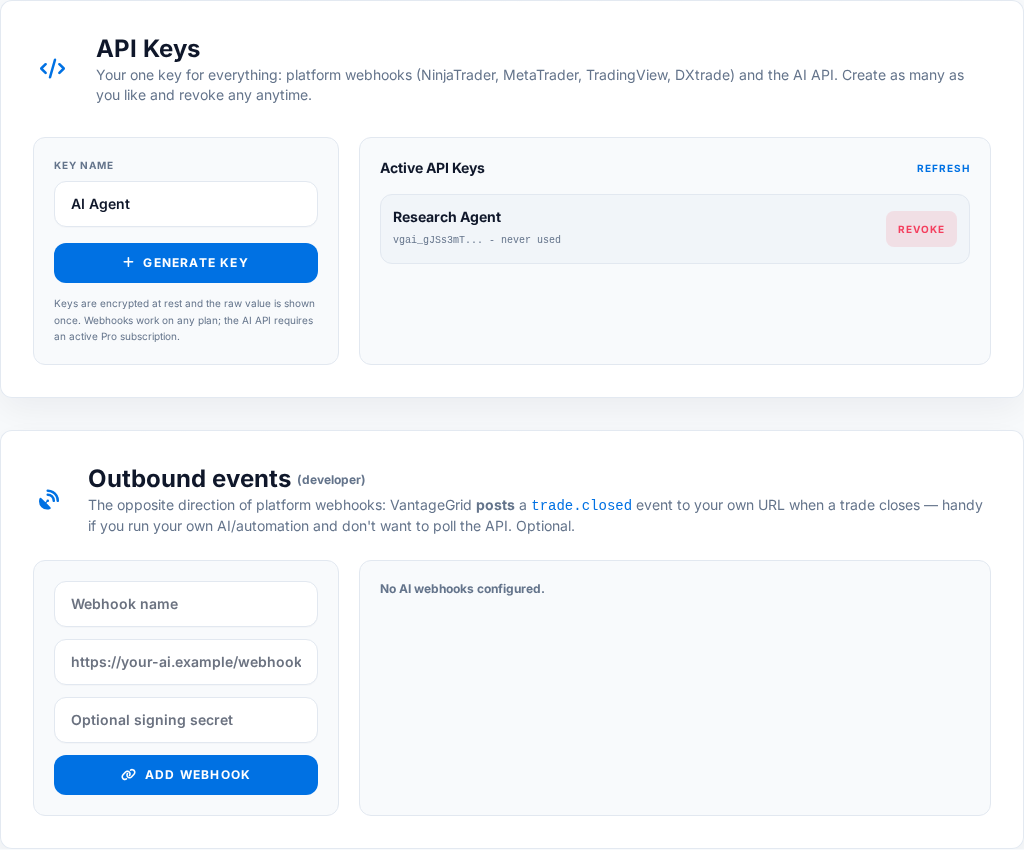
Authorization: Bearer vgai_your_api_key_hereX-VantageGrid-API-Key: vgai_your_api_key_hereVantageGrid stores Pro API keys using hash-based lookup and encrypted storage. You still must treat the visible key as a secret because anyone holding it can call your Pro API until it is revoked. A new key is read-only unless you choose read and write; keys created before access levels existed keep read and write. You can change a key's access on the Account page at any time. Platform webhooks accept a key of either access level.
This is the opposite direction from everything else in this Pro API section. The API key and platform webhooks above are for VantageGrid receiving data. Outbound AI webhooks are for VantageGrid sending a notification to a URL you control the moment a trade fully closes.
{
  "event": "trade.closed",
  "schema": "vantagegrid.webhook.v1",
  "timestamp": "2026-07-04T14:32:00+00:00",
  "trade": {
    "id": 10321,
    "instrument": "ES",
    "action": "sell",
    "quantity": 1,
    "entry_price": 18500.25,
    "exit_price": 18512.75,
    "net_pnl": 250.0,
    "account_name": "Main Futures",
    "tags": "Opening Range,Following Plan",
    "sentiment": "Confident",
    "closed_at": "2026-07-04T14:31:58+00:00"
  }
}
If you set a shared secret, every request carries an X-VantageGrid-Signature: sha256=<hex> header — an HMAC-SHA256 of the raw request body using your secret. Recompute it on your end and compare before trusting the payload.
Each webhook row shows a Last Status (ok, or error: HTTP 4xx/5xx, or a connection error) after its most recent delivery attempt, so you can debug a silent integration without needing server-side logs. Deliveries time out after 8 seconds.
Returns a compact account context for your own assistant (GPT, Claude, Gemini or a script), with schema vantagegrid.ai_context.v2. Every figure comes from your own journal and settings; a value that is not recorded is null, never guessed. When realized amounts are incomplete, or trades in two currencies would have to be added, the endpoint answers 409 with the reason instead of a total.
| Field | Description |
|---|---|
| rules | Your saved rules: configured, day_start_minutes, time_zone and the inputs you set (trading window, trades per day, loss per trade, daily loss stop, losses in a row, wait after a loss, contracts). Empty inputs are left out. |
| rule_cost | This calendar week's Rule Cost on your live accounts, checked like the Review (window is week, or 30d when this week has no closed trade). kind is cost, gain, clean, mixed (several currencies: no single value) or unknown (with a reason, for example no rules saved). Also trades, followed, broke, followed_net and broken: each rule broken, its setting, how many trades and days broke it and what they netted. |
| accounts | One entry per live account: name, firm, firm_limit (the daily loss limit you entered for its firm account), room_left today from closed trades, daily_loss_progress and drawdown_progress in percent. Each is null when no firm limit is set for that account. |
| playbooks | Active playbooks with at least one checked trade: name, average discipline_score and checked_trades. Left out when there are none. |
| recent_performance | The last 30 days of closed trades: trade count, net P&L, average, win rate, profit factor, wins and losses, and how many trades have incomplete fees or uncertain times. |
| emotional_patterns | Your own tags (FOMO, Revenge, Patience, Following Plan and so on) with net P&L, win rate and trade count per tag. |
| prop_firm_guardian | The firm-limit state the full dashboard shows for all accounts together. |
| behavioral_bias_summary | The tag with the lowest net P&L and the counts behind it, in one sentence. |
curl -s https://vantagegrid.pro/api/v1/ai-context \
-H "Authorization: Bearer vgai_your_api_key_here"{
"schema": "vantagegrid.ai_context.v2",
"rules": {"configured": true, "day_start_minutes": 0,
"inputs": {"windowStart": "00:00", "windowEnd": "15:30",
"maxTradesPerDay": 3, "maxConsecutiveLosses": 2}},
"rule_cost": {"window": "week", "currency": "USD", "kind": "cost", "value": -1620.0,
"trades": 18, "followed": 14, "broke": 4, "followed_net": 2450.0,
"broken": [
{"id": "window", "setting": "00:00 to 15:30", "breaks": 2, "days": 1, "net": -850.0},
{"id": "maxTradesPerDay", "setting": "3", "breaks": 1, "days": 1, "net": -405.0},
{"id": "maxConsecutiveLosses", "setting": "2", "breaks": 1, "days": 1, "net": -365.0}]}
}Your own trades, newest entry first, with schema vantagegrid.trades.v1. Each trade has the fields of the journal export (prices, size, result, fees, account, tags and where it came from) without your notes. Read-only: a read-only key is enough.
| Query parameter | Purpose |
|---|---|
| since, until | Optional. Entry dates, YYYY-MM-DD in UTC, both inclusive. |
| account | Optional. An account name as it appears on your trades. |
| limit | Optional. Trades per page, 50 by default, at most 200. |
| cursor | Optional. The next_cursor of the previous page; null means there is no further page. |
curl -s "https://vantagegrid.pro/api/v1/trades?since=2026-10-26&limit=100" \
-H "Authorization: Bearer vgai_your_api_key_here"Accepts a proposed trade and returns whether it fits your current drawdown, your firm limits, your own risk rules and the Trade Permission score. It writes nothing and places nothing: a read-only key is enough. It checks your own limits; it is not advice about the trade.
| Request field | Purpose |
|---|---|
| instrument | Required. Symbol such as ES, EUR/USD, XAU/USD, BTC/USD, AAPL, US30, or a broker-specific symbol. |
| action | Required. One of buy, sell, long, or short (case-insensitive). |
| quantity | Required. Proposed size in contracts/lots/units; must be greater than 0. |
| price | Optional. Expected entry price if known. |
| stop_loss | Optional but strongly recommended. Stop price used to estimate potential loss; without it a bot may be denied because downside cannot be estimated. |
| take_profit | Optional. Target price, used for risk/reward context. |
| risk_amount | Optional. Dollar risk you intend to take, if you already computed it yourself. |
| account | Optional. Account name as a string (matching the account names on your trades); defaults to "all". Use the exact prop account name when rules differ per account. |
| setup | Optional. The setup/strategy-context name, so the Permission score can weigh your historical edge in that setup. |
| sleep, hydration, focus | Optional wellness self-ratings; when supplied, they feed the Trade Permission readiness score just like the in-app pre-trade check. |
curl -s https://vantagegrid.pro/api/v1/guardian-validate \
  -H "Authorization: Bearer vgai_your_api_key_here" \
  -H "Content-Type: application/json" \
  -d '{
    "instrument": "ES",
    "action": "buy",
    "quantity": 1,
    "price": 18500.25,
    "stop_loss": 18480.25,
    "account": "Apex 50k",
    "setup": "Opening Range"
  }'

{
  "authorized": true,
  "decision": "go",
  "score": 78,
  "size_multiplier": 1.0,
  "reasons": [],
  "rule_guard": { "...": "per-rule evaluation details" },
  "guardian": { "...": "current firm-limit drawdown state" },
  "permission": { "...": "full Trade Permission breakdown" },
  "proposed_trade": { "...": "echo of your request" }
}
authorized is the single boolean to act on. It is only true when no firm limit is breached, daily-loss and drawdown progress are both under 100%, every configured risk rule passes, and the Permission decision is go, conditional or reduce. When it is false, the reasons array lists every blocker in plain language. Honor size_multiplier (for example 0.5 = half size) when the decision is reduce.
from __future__ import annotations

from dataclasses import dataclass
from typing import Any, Dict, Optional

import requests


class VantageGridError(RuntimeError):
    pass


@dataclass
class ProposedTrade:
    instrument: str
    action: str                      # buy | sell | long | short
    quantity: float
    price: Optional[float] = None
    stop_loss: Optional[float] = None
    take_profit: Optional[float] = None
    risk_amount: Optional[float] = None
    account: str = "all"             # account NAME, e.g. "Apex 50k"
    setup: Optional[str] = None


class VantageGridClient:
    def __init__(self, api_key: str, base_url: str = "https://vantagegrid.pro", timeout: float = 10.0):
        self.base_url = base_url.rstrip("/")
        self.timeout = timeout
        self.session = requests.Session()
        self.session.headers.update({
            "Authorization": f"Bearer {api_key}",
            "Content-Type": "application/json",
            "User-Agent": "VantageGrid-AI-Client/1.0",
        })

    def _request(self, method: str, path: str, **kwargs: Any) -> Dict[str, Any]:
        url = f"{self.base_url}{path}"
        response = self.session.request(method, url, timeout=self.timeout, **kwargs)
        if response.status_code == 401:
            raise VantageGridError("API key is missing, invalid, or revoked.")
        if response.status_code == 403:
            # An inactive Pro subscription, or a read-only key on a write endpoint.
            raise VantageGridError(response.json().get("detail", "Access refused."))
        if response.status_code == 429:
            raise VantageGridError("Rate limit exceeded. Back off before retrying.")
        if response.status_code >= 400:
            raise VantageGridError(f"VantageGrid API error {response.status_code}: {response.text[:300]}")
        return response.json()

    def ai_context(self) -> Dict[str, Any]:
        return self._request("GET", "/api/v1/ai-context")

    def trades(self, since: Optional[str] = None, limit: int = 50, cursor: Optional[int] = None) -> Dict[str, Any]:
        params = {"since": since, "limit": limit, "cursor": cursor}
        return self._request("GET", "/api/v1/trades", params={k: v for k, v in params.items() if v is not None})

    def guardian_validate(self, trade: ProposedTrade) -> Dict[str, Any]:
        payload = {
            "instrument": trade.instrument,
            "action": trade.action,
            "quantity": trade.quantity,
            "price": trade.price,
            "stop_loss": trade.stop_loss,
            "take_profit": trade.take_profit,
            "risk_amount": trade.risk_amount,
            "account": trade.account,
            "setup": trade.setup,
        }
        payload = {key: value for key, value in payload.items() if value is not None}
        return self._request("POST", "/api/v1/guardian-validate", json=payload)


if __name__ == "__main__":
    client = VantageGridClient(api_key="vgai_your_api_key_here")

    context = client.ai_context()
    rule_cost = context["rule_cost"]
    print("Rule Cost this week:", rule_cost["kind"], rule_cost.get("value"), rule_cost["currency"])
    for rule in rule_cost.get("broken", []):
        print(f'  {rule["label"]}: broken {rule["breaks"]} times, net {rule["net"]}')

    decision = client.guardian_validate(ProposedTrade(
        instrument="ES",
        action="buy",
        quantity=1,
        price=18500.25,
        stop_loss=18480.25,
        account="Apex 50k",
        setup="Opening Range",
    ))

    if decision.get("authorized"):
        multiplier = decision.get("size_multiplier", 1.0)
        print(f"Trade within your limits (size multiplier: {multiplier}).")
    else:
        print("Trade blocked:", "; ".join(decision.get("reasons", [])))
Execution bots should fail closed. If VantageGrid is unreachable, the safest default is not to place the trade.
The import page reads most platform exports without any mapping and counts the rows it can't read, with the reason. For a layout it doesn't recognise, use the column matcher:
Common header fixes: map `Symbol`, `Market`, or `Instrument` to instrument; map `Realized P/L`, `Profit`, or `Net PnL` to P&L; map `Commission` or `Fees` to fees.
Check platform bridge status, API key, webhook URL, internet connection, and whether the trading platform is running. If the key was regenerated, update it in the bridge or Expert Advisor.
Check the Last Status shown next to the webhook in Account → API Keys after your next trade closes. An HTTP error means your endpoint rejected or failed the request; a connection error usually means the URL is unreachable or too slow (deliveries time out after 8 seconds). If you verify signatures, make sure you are hashing the exact raw request body with the exact secret configured in VantageGrid.
Essential cookies keep sign-in secure. Preferences, analytics and attribution only with your consent. Privacy Policy